Meeting Notes Mode
AI-powered meeting notes with speaker attribution, structured formats for every meeting type, and automatic action item extraction
Watch the video
All videos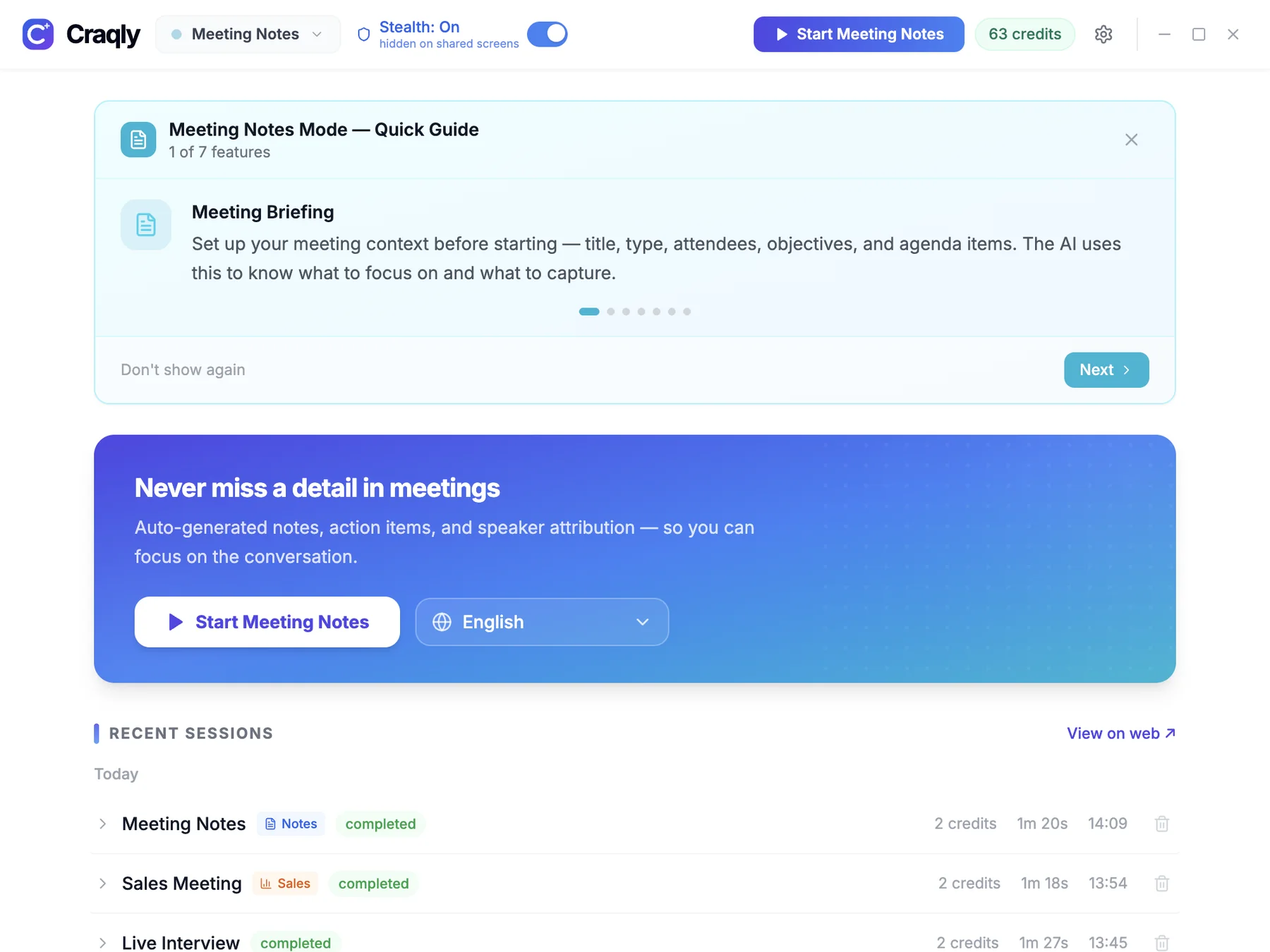
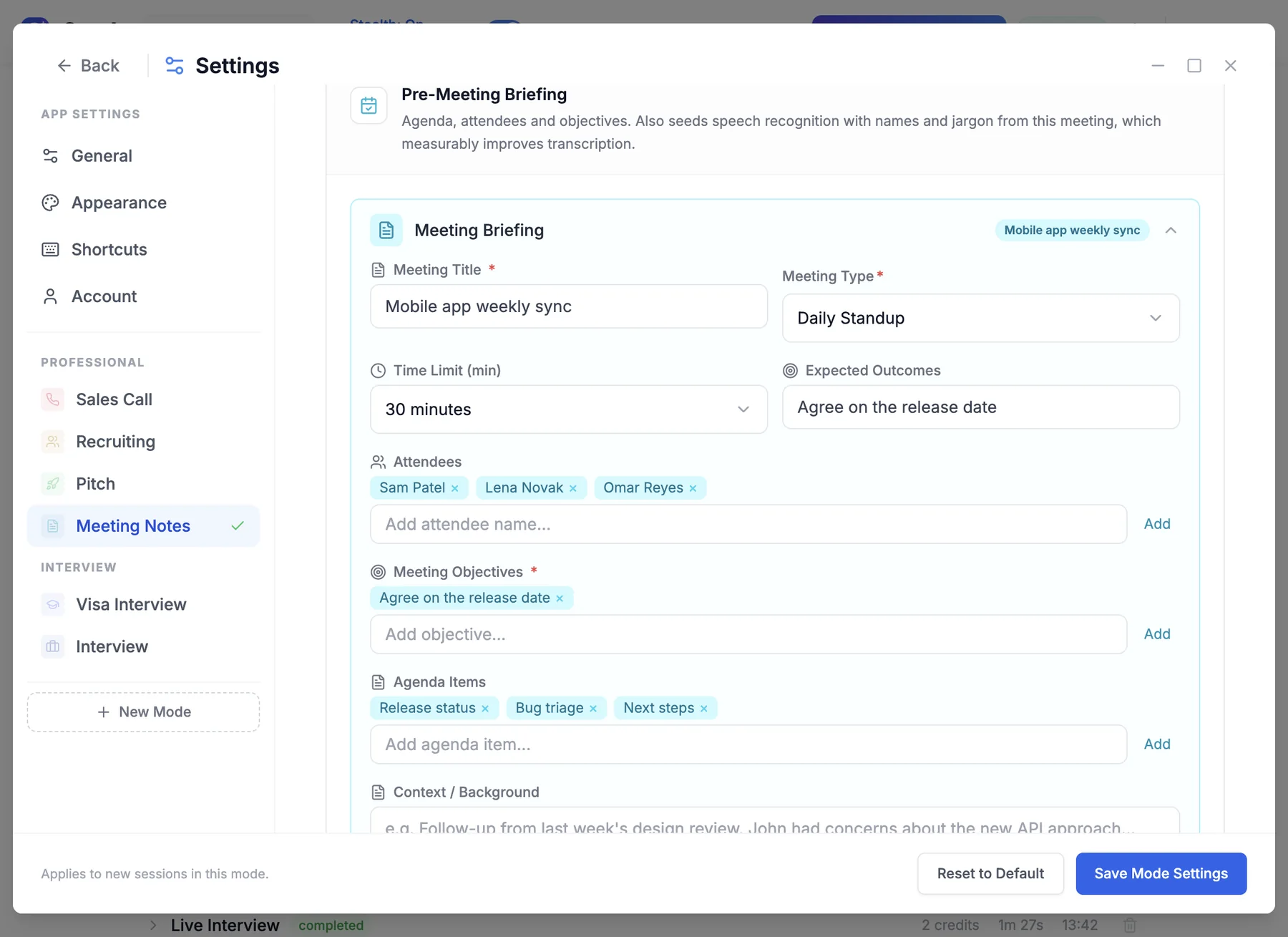
Meeting Sub-Modes
Choose the format that matches your meeting type for optimally structured notes
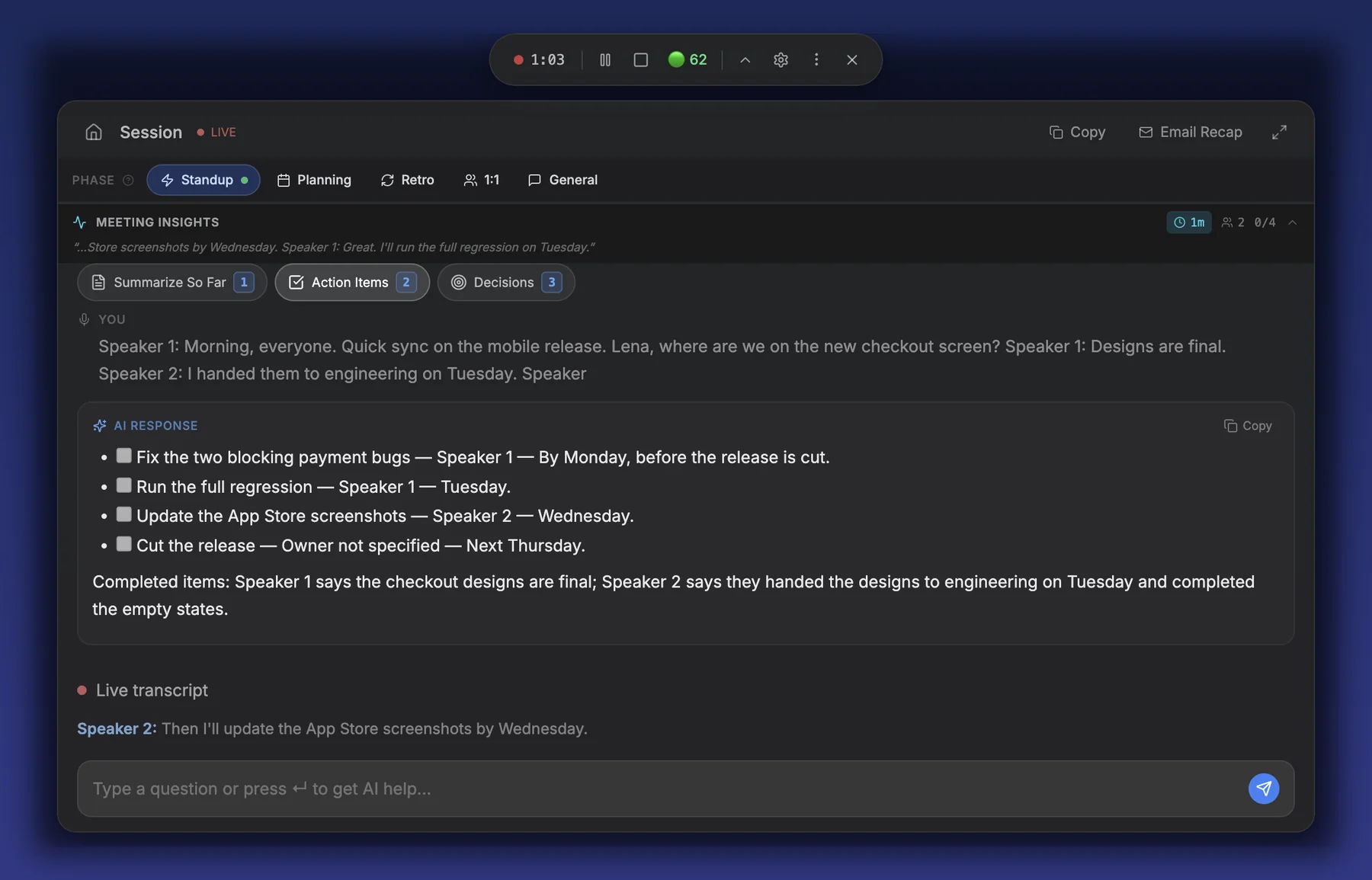
Standup
Captures updates, blockers, and priorities from daily standups
- Brief, action-oriented format
- Captures what each person did yesterday
- Records what they plan to do today
- Highlights blockers and impediments
- Keeps notes concise and scannable
Planning
Sprint planning sessions with story points and task assignments
- Records sprint goal discussions
- Captures story point estimates
- Tracks task assignments to team members
- Documents scope negotiations
- Logs capacity and velocity references
Retro
Retrospective meetings with structured feedback categories
- What went well -- positive outcomes and wins
- What didn't go well -- pain points and issues
- Improvements -- actionable suggestions for next sprint
- Organizes feedback by speaker
- Highlights recurring themes
1:1
Manager-report check-ins, career discussions, and priority alignment
- Check-in and well-being notes
- Current priorities and progress updates
- Career development and growth topics
- Feedback exchanged in both directions
- Next steps and follow-up items
General
Flexible format for any type of meeting with agenda tracking
- Agenda topics and discussion points
- Key decisions made during the meeting
- Action items with assignees
- Parking lot for deferred topics
- Adapts to any meeting structure
Quick Actions
One-click AI actions available during any meeting notes session
Summarize So Far
Generate a running summary of everything discussed up to this point in the meeting
Action Items
Extract all tasks and commitments mentioned, with assignees and priority levels
Decisions
List all decisions that have been made during the meeting with context on who proposed them
Capture Topic
Mark and save a specific discussion topic or key point for the meeting notes
Draft Email
Generate a follow-up email draft based on the meeting discussion and action items
Parking Lot
Add the current topic to the parking lot -- topics raised but not fully addressed in this meeting
Special Features
Advanced capabilities that make Meeting Notes mode stand out
Speaker Attribution
Uses Deepgram diarization to label speakers (Speaker 0, Speaker 1, etc.) throughout the transcript. Each comment, decision, and action item is tied to the person who said it.
Generated Notes
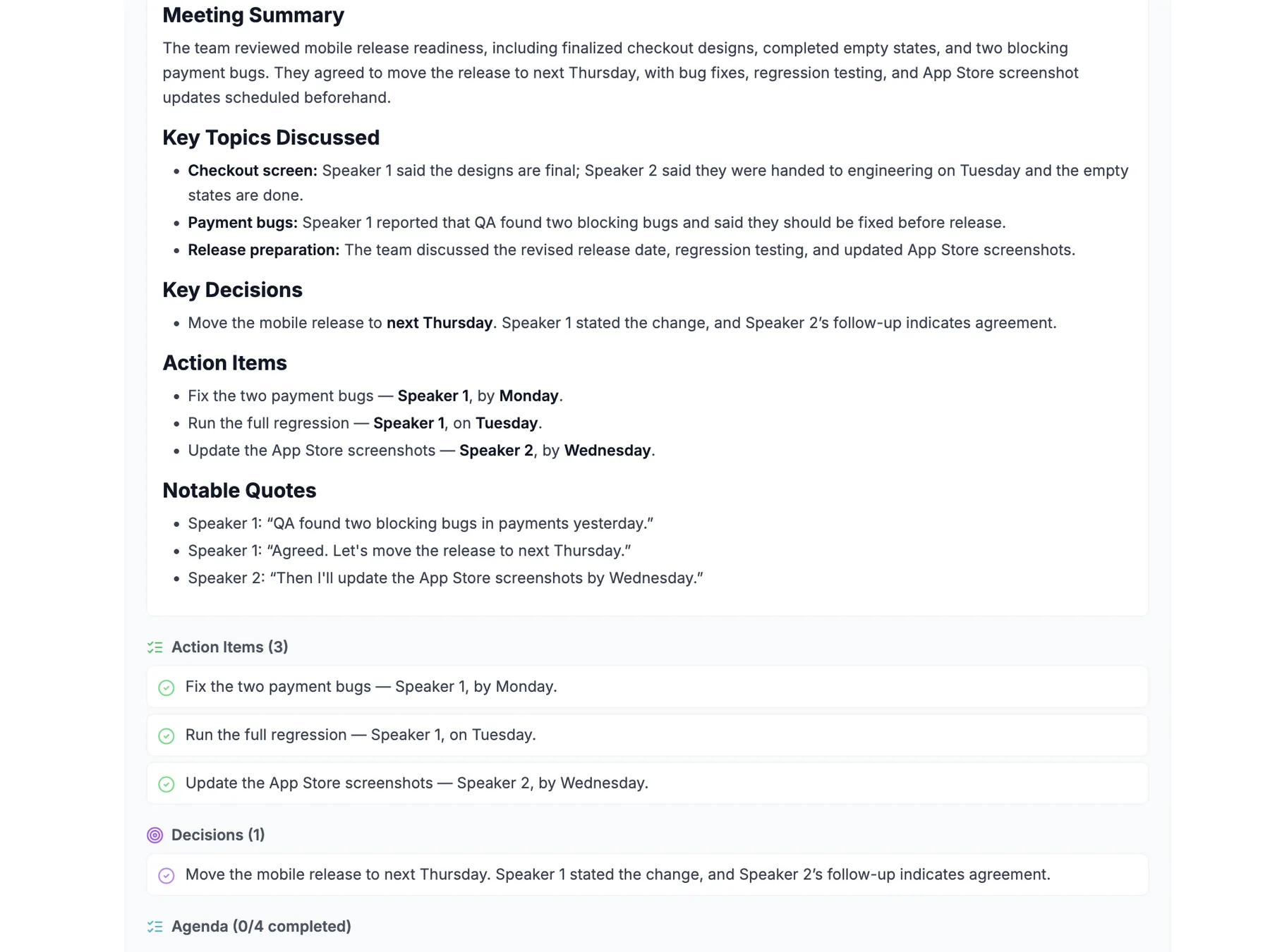
AI creates structured meeting notes from the raw transcript, organized by topic with speaker labels. Notes follow the format of the selected sub-mode (Standup, Planning, Retro, 1:1, or General).
Action Item Extraction
Automatically identifies tasks from the conversation, assigns them to the speaker who committed or was assigned, and indicates priority level based on context and urgency cues.
Decision Tracking
Records every decision made during the meeting along with who proposed it, any alternatives discussed, and the final consensus or ruling.
Parking Lot
Captures topics that were raised but could not be fully addressed in the current meeting. These are saved separately so they can be revisited in future sessions.
How Speaker Attribution Works
Craqly uses Deepgram's diarization engine to identify distinct speakers in the audio stream. Each speaker is assigned a consistent label throughout the meeting, which carries over into the generated notes, action items, and decisions.
Example: Generated Standup Notes
Yesterday: Completed the auth module refactor
Today: Starting API integration tests
Blockers: None
Yesterday: Code review for PR #142
Today: Deploy staging environment
Blockers: Waiting on DevOps credentials
Keyboard Shortcuts
- Toggle Craqly windowCtrl+B
- Trigger AI responseCtrl+Space
- Take a screenshotCtrl+H
- Answer the question you just captured (8s after a screenshot)Space
- Run quick action 1-6 without focusing CraqlyCtrl+1 ... Ctrl+6
- Delete last screenshotCtrl+L
- Trigger quick action by position1, 2, 3...
- Start a new sessionCtrl+R
- Scroll responses upArrow Up / Page Up
- Scroll responses downArrow Down / Page Down
- Move the Craqly windowCtrl+Arrow Keys
- Quit the applicationCtrl+Q
Tips & Best Practices
Get the most out of Meeting Notes mode
Choose the Right Sub-Mode
Selecting the correct sub-mode (Standup, Planning, Retro, 1:1, or General) ensures the AI structures your notes in the most useful format for that meeting type.
Review Generated Notes
While the AI produces accurate structured notes, always review them for context that may have been missed. Speaker labels (Speaker 0, Speaker 1) should be mapped to real names before sharing.
Use Parking Lot Proactively
When a tangential topic comes up, use the Parking Lot quick action immediately. This keeps the meeting focused and ensures the topic is not forgotten.
Ready to Take Better Meeting Notes?
Download the Craqly desktop app and let AI handle your meeting notes while you focus on the conversation