AI Interview Copilot Guide
Your real-time AI assistant for live interviews, behavioral questions, coding rounds, practice and offer conversations. A desktop overlay for Windows and macOS.
Watch the video
All videosWhat is the Interview Copilot?
The Interview Copilot is a desktop application that runs as an overlay alongside your video calls, hidden from screen shares by default,, coding platforms, and browsers. It listens to or captures interview content and uses AI to generate answers, strategies, and feedback in real time. The copilot supports four distinct phases (Live Interview, Behavioral, Practice, Coding, Offer Talk and Assessment), each designed for a different part of the process.
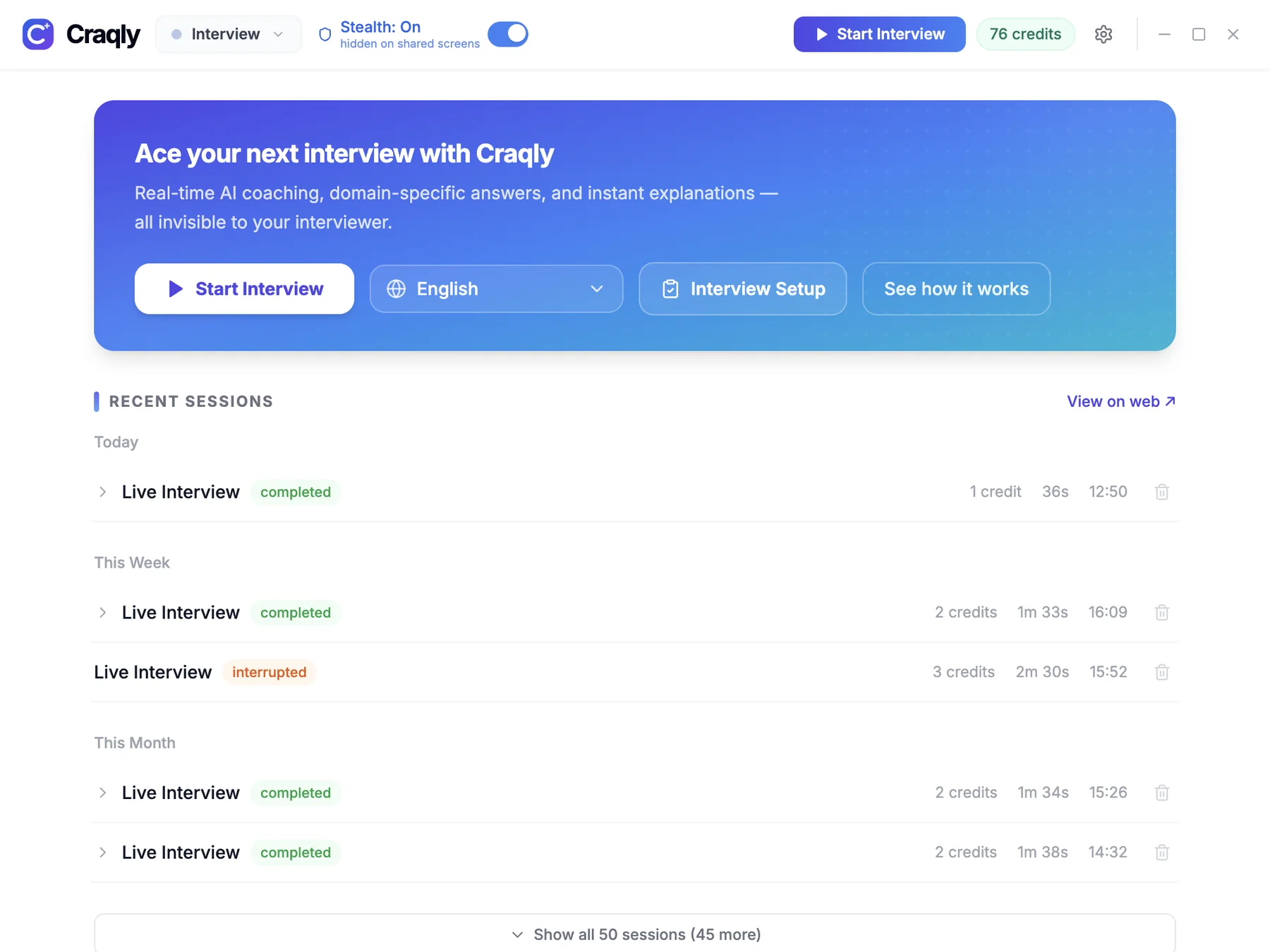
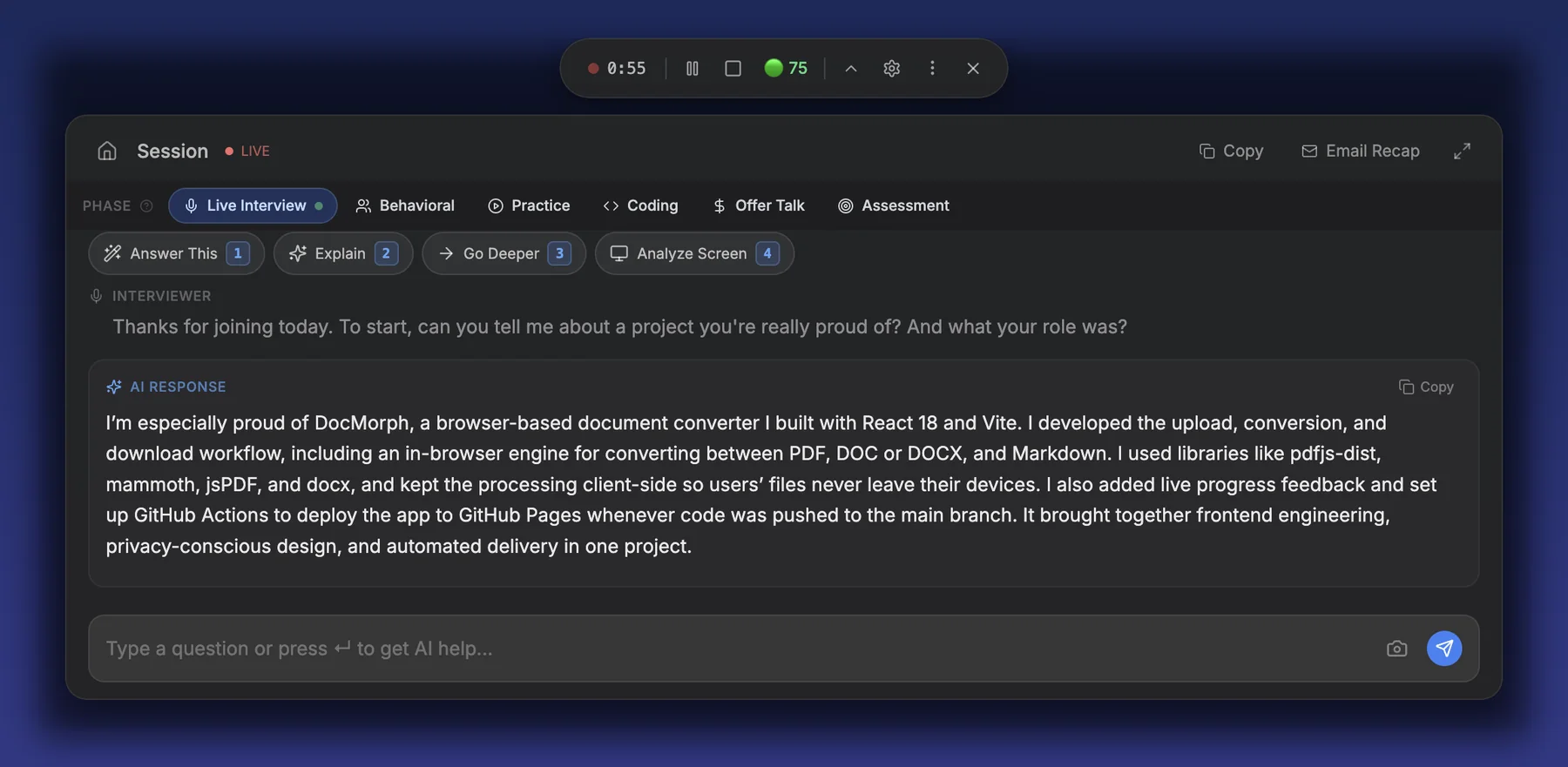
Interview Setup
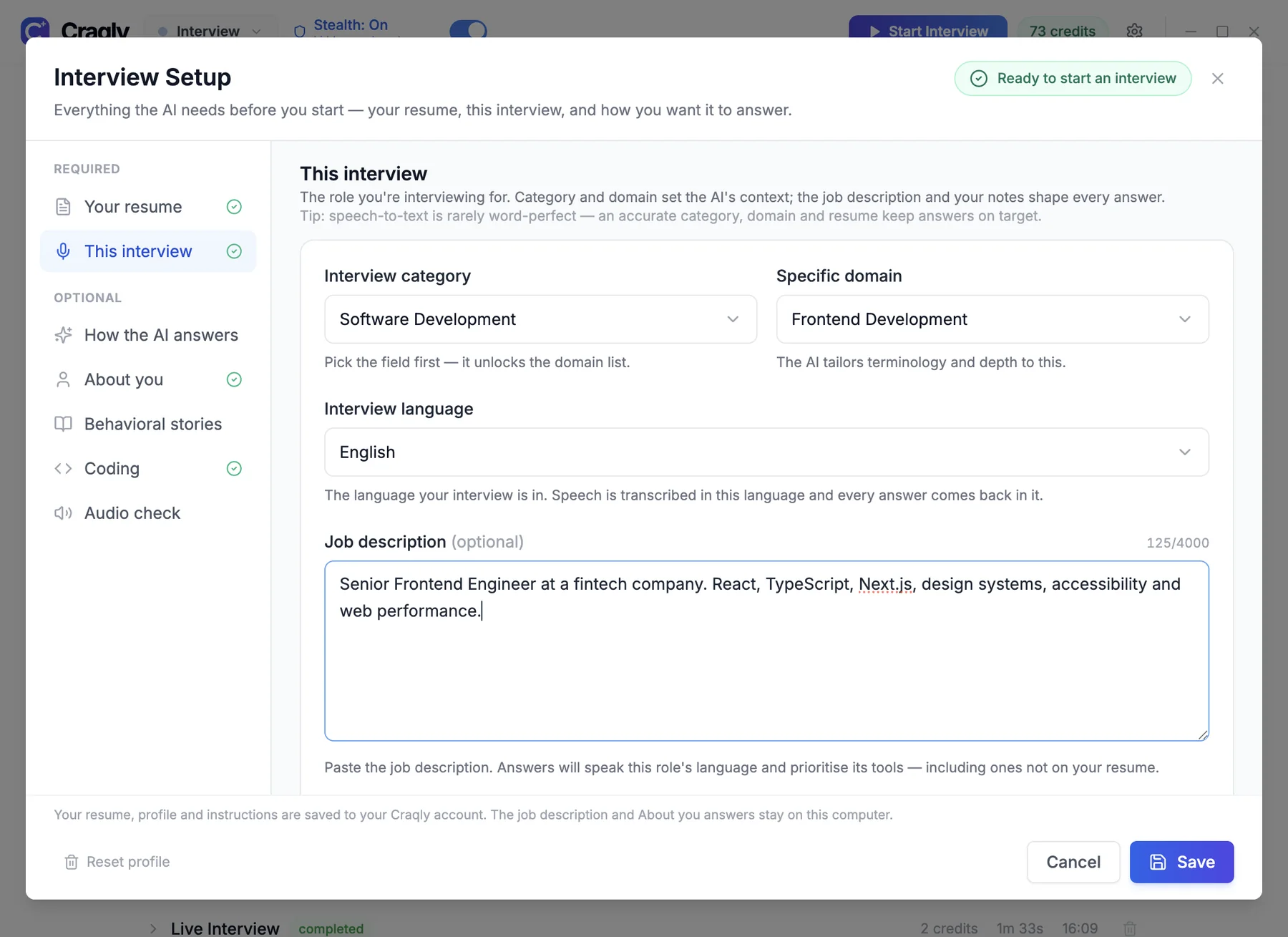
Everything the AI needs before you start, in one window. Open it from the home screen (Interview Setup). The two required parts are your resume and this interview; the rest makes answers sound like you.
- Your resume: upload it and check what the AI reads from it.
- This interview: category, domain, interview language and the job description.
- How the AI answers: style, length, tone, STAR for behavioral answers, a live preview, and auto-response.
- About you: current and target role, years of experience, skills, and the questions interviewers ask about you.
- Behavioral stories and Coding: your story bank and preferred coding language.
- Audio check: a free test that Craqly can hear your computer's sound.
Watch the video
All videos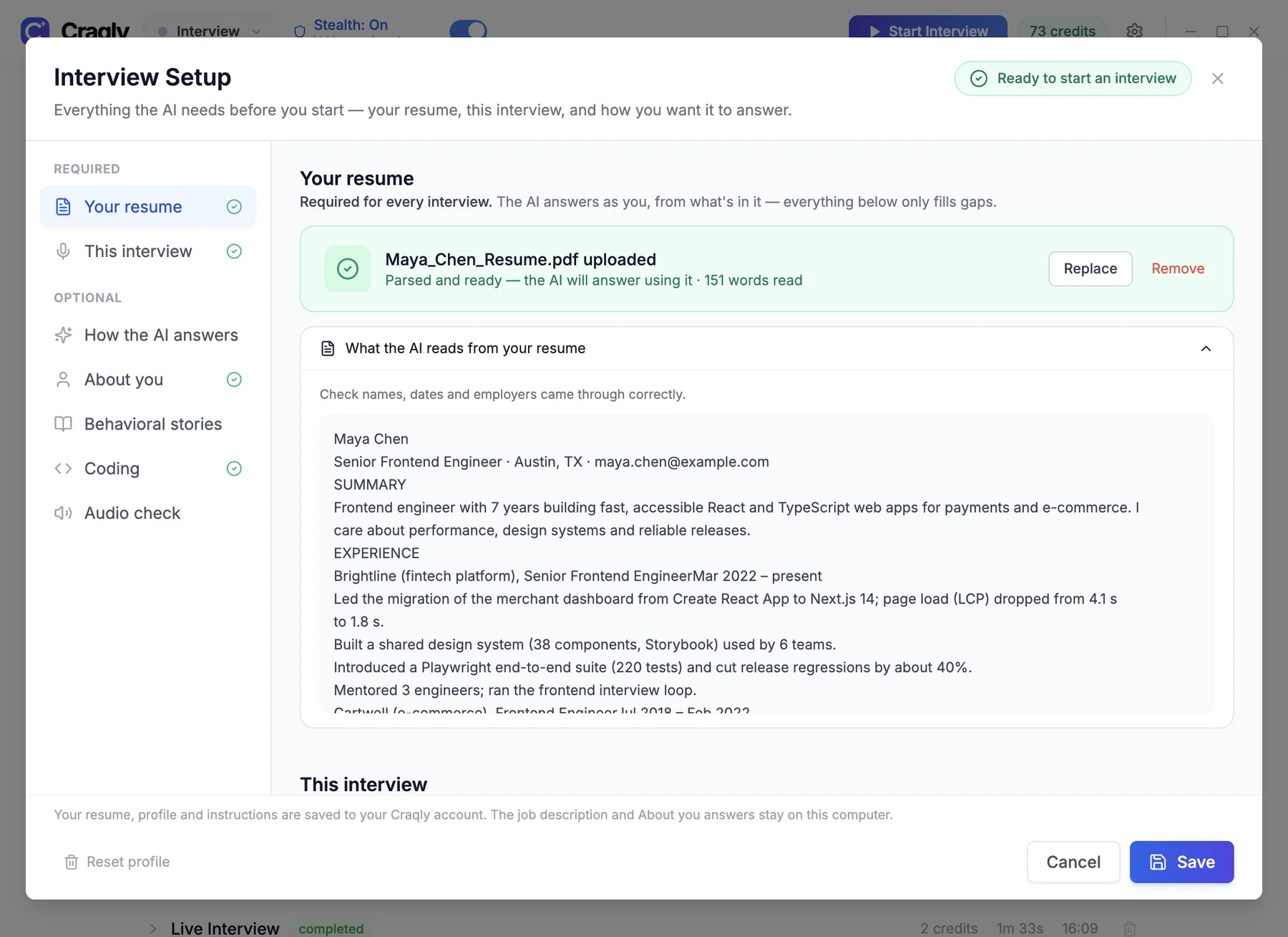
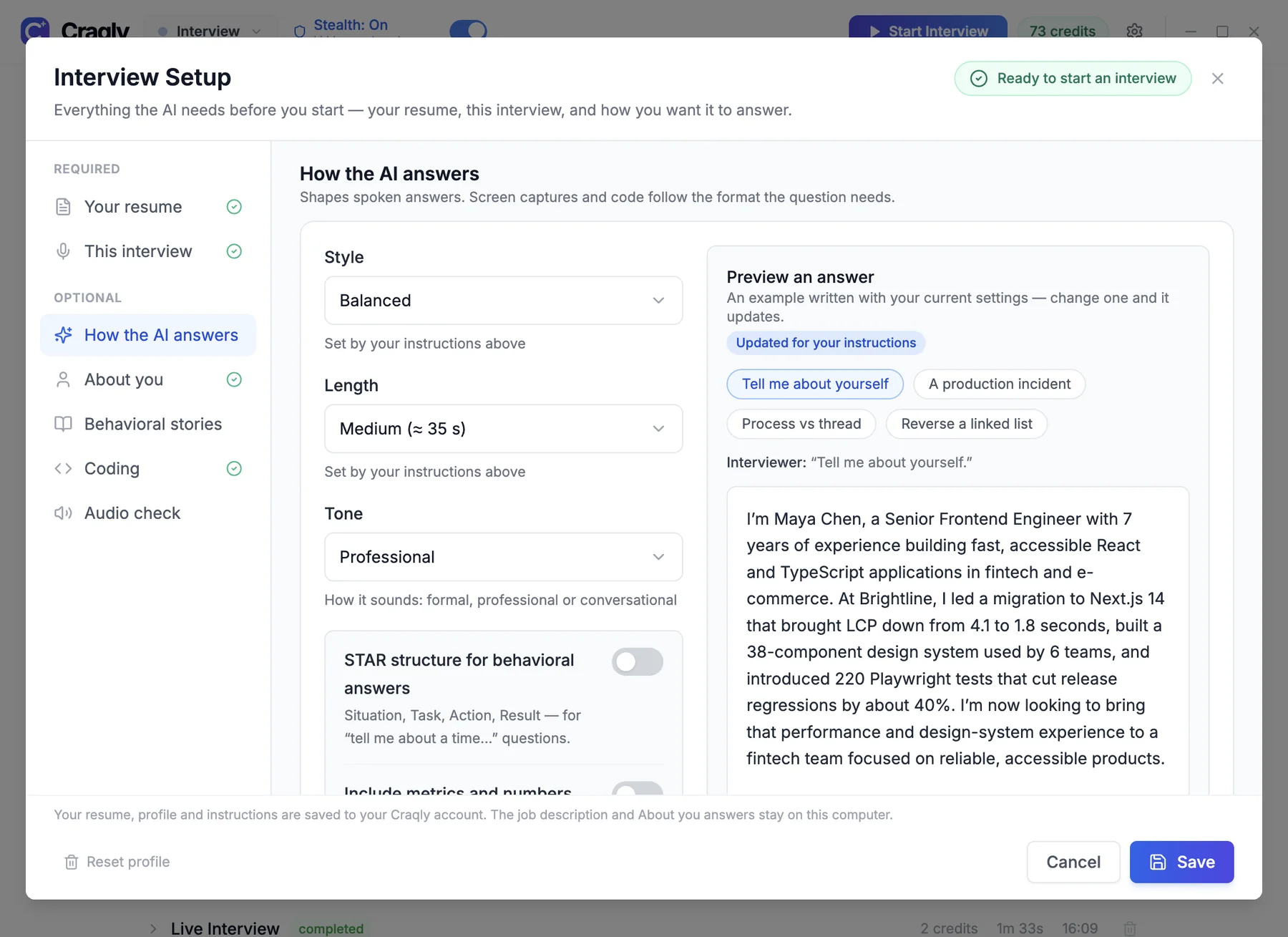
Live Mode
Get direct, concise answers to interview questions during live video calls. The app captures system audio from your meeting platform (Zoom, Teams, Google Meet, etc.) and transcribes the interviewer's questions in real time.
How It Works
- 1Join your video call and start a Live Interview session in Craqly
- 2Click Start Listening in the toolbar so Craqly starts transcribing the interviewer
- 3With auto-response on, Craqly answers each question as soon as the interviewer pauses
- 4Or press Cmd+Shift+Space (Ctrl+Space on Windows), or a quick action, to answer on demand
- 5Scroll through the response with arrow keys and deliver your answer naturally
Quick Actions
Generates a clear, structured answer to the current question
Explains the concept behind the question you just answered, in more depth. It follows up on that answer -- it does not jump to whatever was said next
Continues your previous answer with more detail -- an example, a trade-off, or a number. Use it when the interviewer asks you to elaborate
Takes a screenshot and analyzes on-screen content for context
Tip
Make sure your video call is running before starting audio capture. The app captures system audio output, so the meeting must be active first.
Behavioral Mode
Tailored for behavioral and situational interview questions. Answers are structured using the STAR method (Situation, Task, Action, Result) and personalized based on your uploaded resume so responses reference your actual experience.
How It Works
- 1Upload your resume during session setup for personalized STAR answers
- 2The AI captures behavioral questions like 'Tell me about a time when...'
- 3Responses are structured into clear Situation, Task, Action, and Result sections
- 4Your real experience from the resume is woven into each answer
- 5Use Follow-ups to prepare for common follow-up questions the interviewer may ask
Quick Actions
Generates a complete Situation-Task-Action-Result formatted answer
Predicts likely follow-up questions and prepares responses
Refines your last answer with stronger language and impact
Rates your answer and suggests specific improvements
Captures on-screen content for additional context
Tip
Always upload your resume for this mode. Without it, the AI generates generic STAR answers. With it, responses directly reference your projects, skills, and accomplishments.
Practice / Simulation Mode
Practice mode for rehearsing interviews before the real thing. Uses your microphone instead of system audio, so you can speak questions aloud and get AI feedback. The AI scores your answers, suggests improvements, and predicts follow-up questions.
How It Works
- 1Switch the phase to Practice and click Start Voice Practice
- 2Answer the practice questions out loud
- 3The app transcribes your speech and analyzes your response
- 4Get scored feedback with specific suggestions for improvement
- 5Practice with predicted follow-up questions to build confidence
Quick Actions
Scores your answer on relevance, structure, and impact
Takes your spoken answer and enhances it with stronger points
Shows likely follow-up questions so you can practice those too
Tip
Use practice mode before every interview to get comfortable with the app's interface and response style. It is the best way to build confidence without using credits on a real call.
Watch the video
All videosOffer Talk
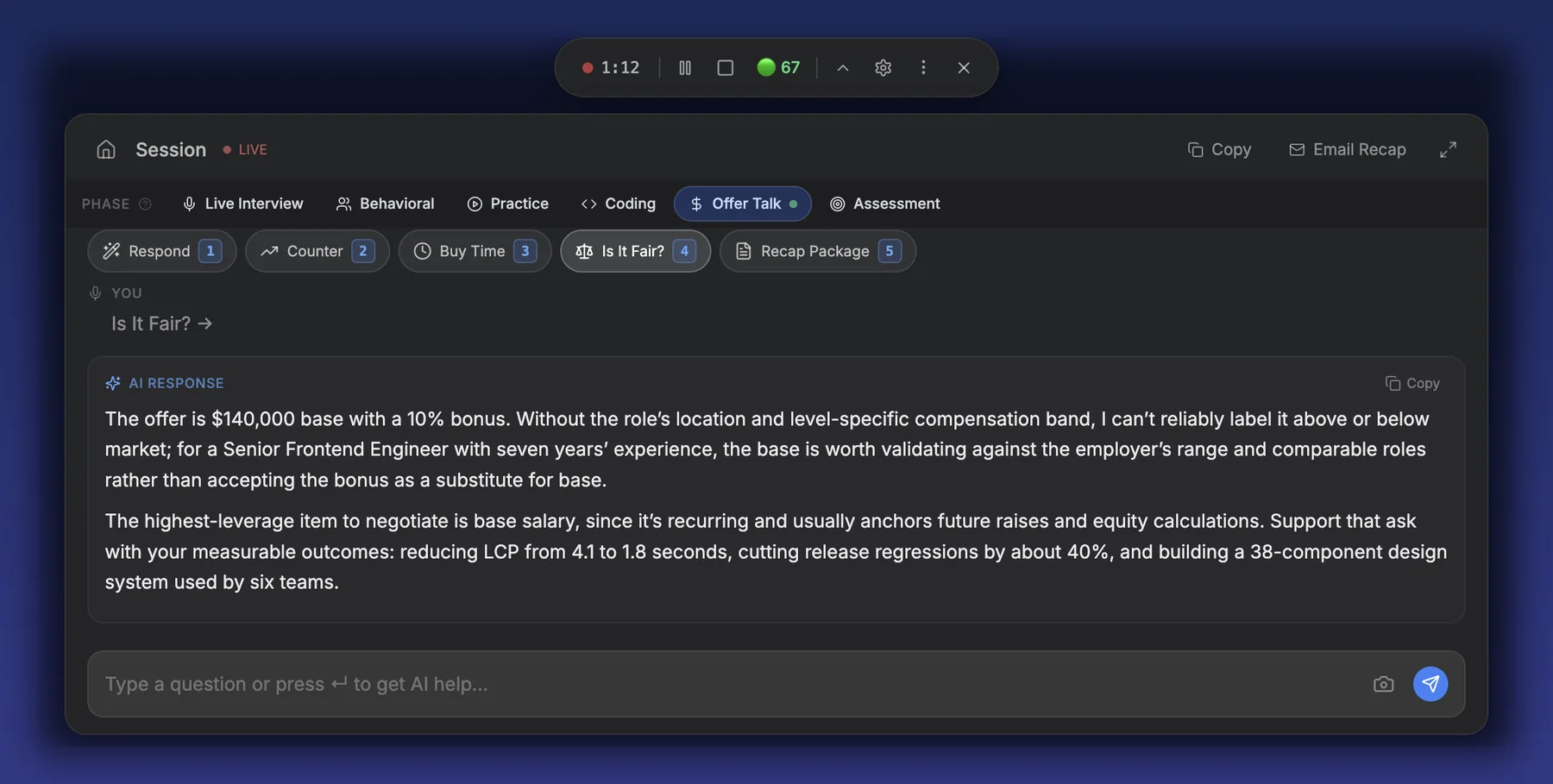
Live help through a salary or offer conversation with a recruiter: what to say when they ask for your expectations, how to buy time, whether the offer is fair, and a counter you can say in your own words.
How It Works
- 1Switch the phase to Offer Talk when the conversation turns to compensation
- 2Craqly listens to the recruiter and suggests what to say next
- 3Use Is It Fair? for a private read on the offer, and Counter for a counter-offer
- 4Recap Package lists everything offered so far, so nothing is missed
Quick Actions
What to say to the recruiter right now
A counter-offer grounded in what you've heard
A polite way to ask for time before you decide
A private assessment of the offer for you, not to read aloud
Base, bonus, equity and benefits mentioned so far
Tip
Fill in About you in Interview Setup (current role, target role, years of experience) so the advice fits your situation.
Coding Mode
Designed for coding interviews and online assessments. Craqly reads the coding problem on your screen, on any coding platform or editor, and gives hints, approaches, full solutions and complexity analysis.
How It Works
- 1Set your preferred coding language in Interview Setup → Coding
- 2During the session, switch the phase to Coding
- 3Open the problem on screen and press Cmd/Ctrl+1 (Analyze Screen); Craqly takes its own screenshot
- 4It writes a solution with time and space complexity, in your language
- 5Use quick actions to get hints, a full approach, or a complete solution
- 6Capture additional screenshots as the problem evolves or for new problems
Quick Actions
Generates a complete solution with explanation and complexity analysis
Provides subtle hints without giving away the full solution
Outlines the algorithm and data structures to use, step by step
Identifies tricky edge cases you should handle in your solution
Explains the problem statement and constraints in plain language
Captures your code or problem from the screen for AI analysis
Tip
Use Hints first if you want to solve the problem yourself with minimal guidance. Use Approach for a full strategy. Quick actions are additive -- you can use Hints first, then Approach, then Code as you progress.
Watch the video
All videos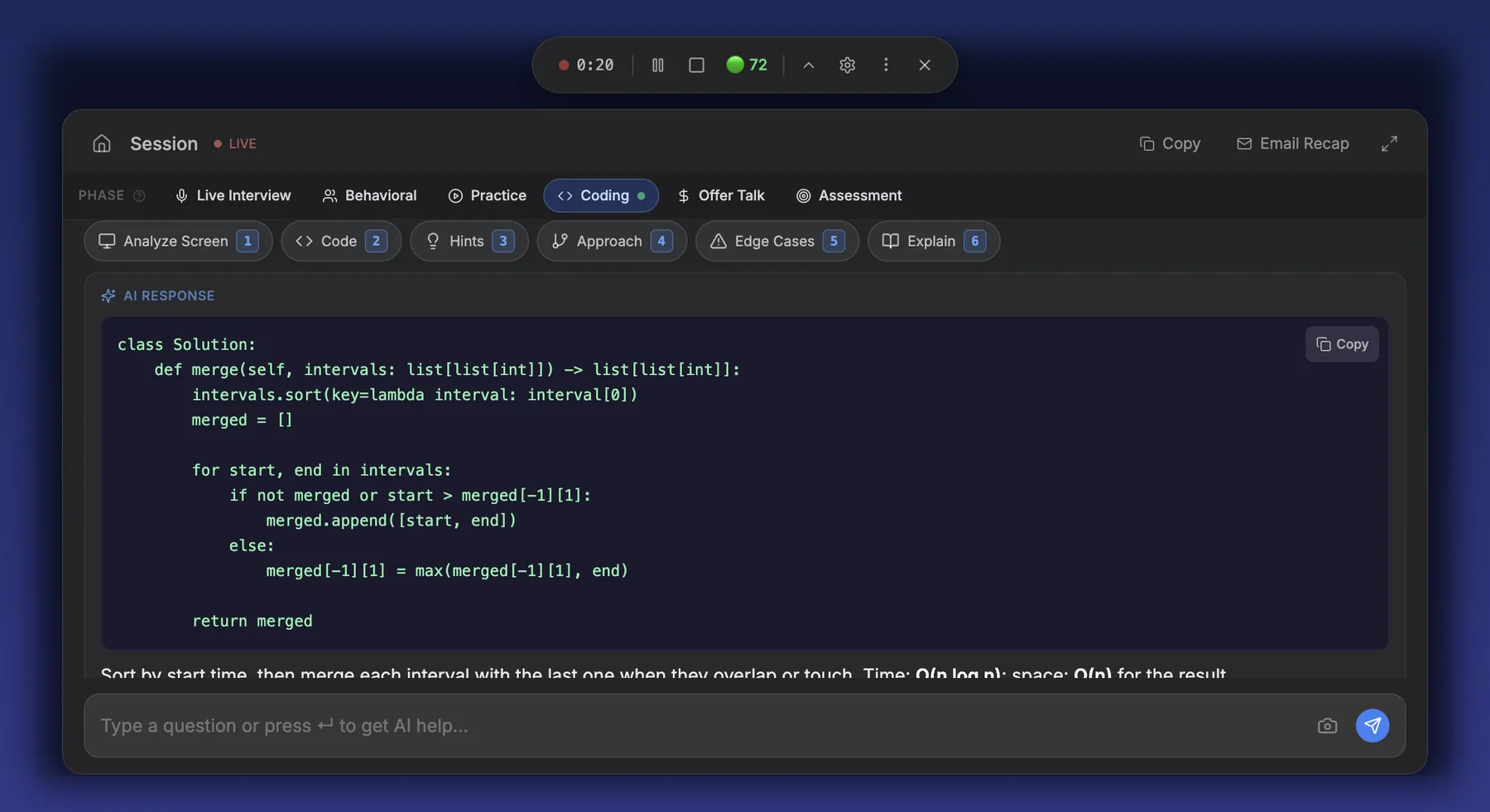
Assessment Mode
For written online assessments and timed exams, where nobody is speaking and the questions are on your screen. Craqly reads the screen and answers every question it can see -- multiple choice, numeric, short answer, or code. Because there is no conversation to follow, this mode does not need your microphone.
How It Works
- 1Open your assessment, then switch the session phase to Assessment
- 2Press Cmd/Ctrl+1 (Analyze Screen) whenever a question is on screen
- 3Craqly takes its own screenshot -- there is no separate capture step
- 4Every question visible is answered, in the order it appears on the page
- 5Questions that already show a selected answer are checked too, and Craqly says whether the selection is right
- 6If a question is cut off at the edge of the screen, Craqly answers what it can read and tells you it was cut off
Quick Actions
Reads the screen and answers every question on it. This is the main action -- Cmd/Ctrl+1
Goes back to the question just answered and explains the concept behind it in more depth
Returns a complete, runnable solution when the question asks you to write code
Tip
Answers are kept short on purpose so you can read them under time pressure. If a question refers to a reading passage or reference document that is not on screen, Craqly will say so rather than guess -- scroll so the passage is visible and analyze again.
Supported Domains
The Interview Copilot supports 35+ interview domains across six categories. Select your domain when starting a session so the AI tailors its answers with the right terminology, frameworks, and depth:
After the interview: everything is on craqly.com
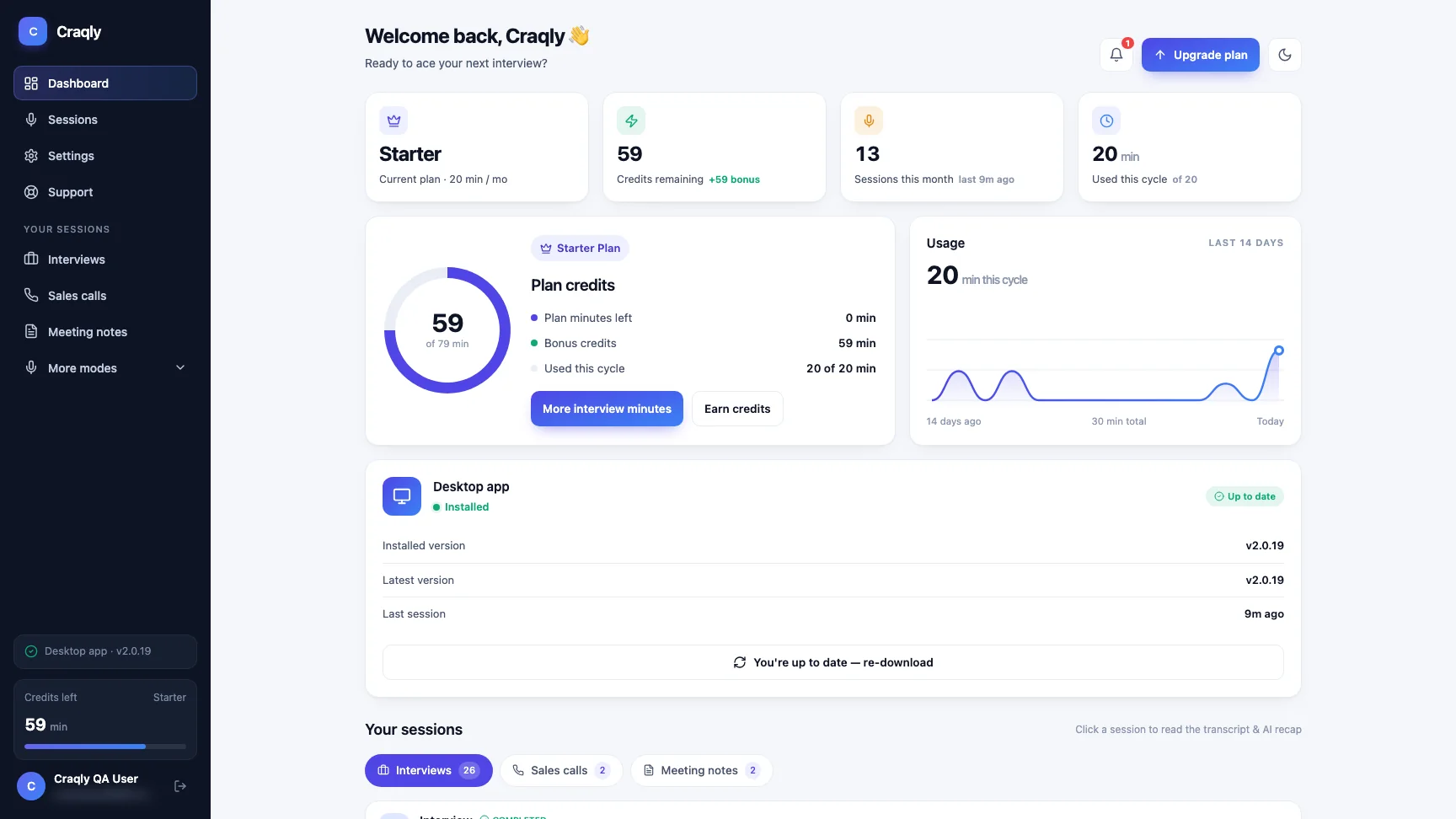
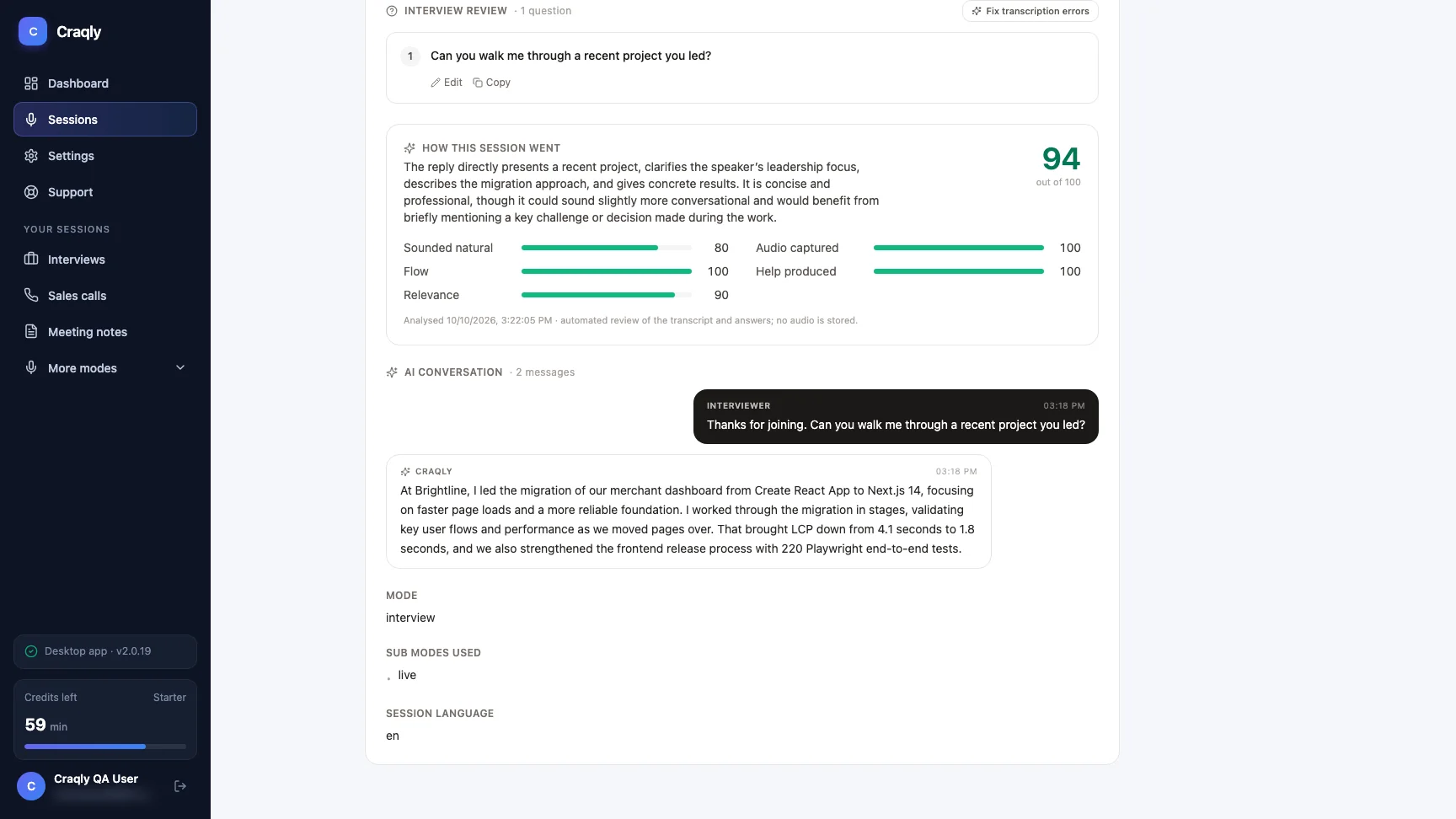
When you end a session, Craqly saves it to your account. Sign in at craqly.com/app on any device to read back what was asked and what you answered — nothing is trapped in the desktop app.
Watch the video
All videosTranscripts are saved by default. Turn off Save session data in Desktop App settings and nothing is written to our servers — see the privacy policy.
Watch the video
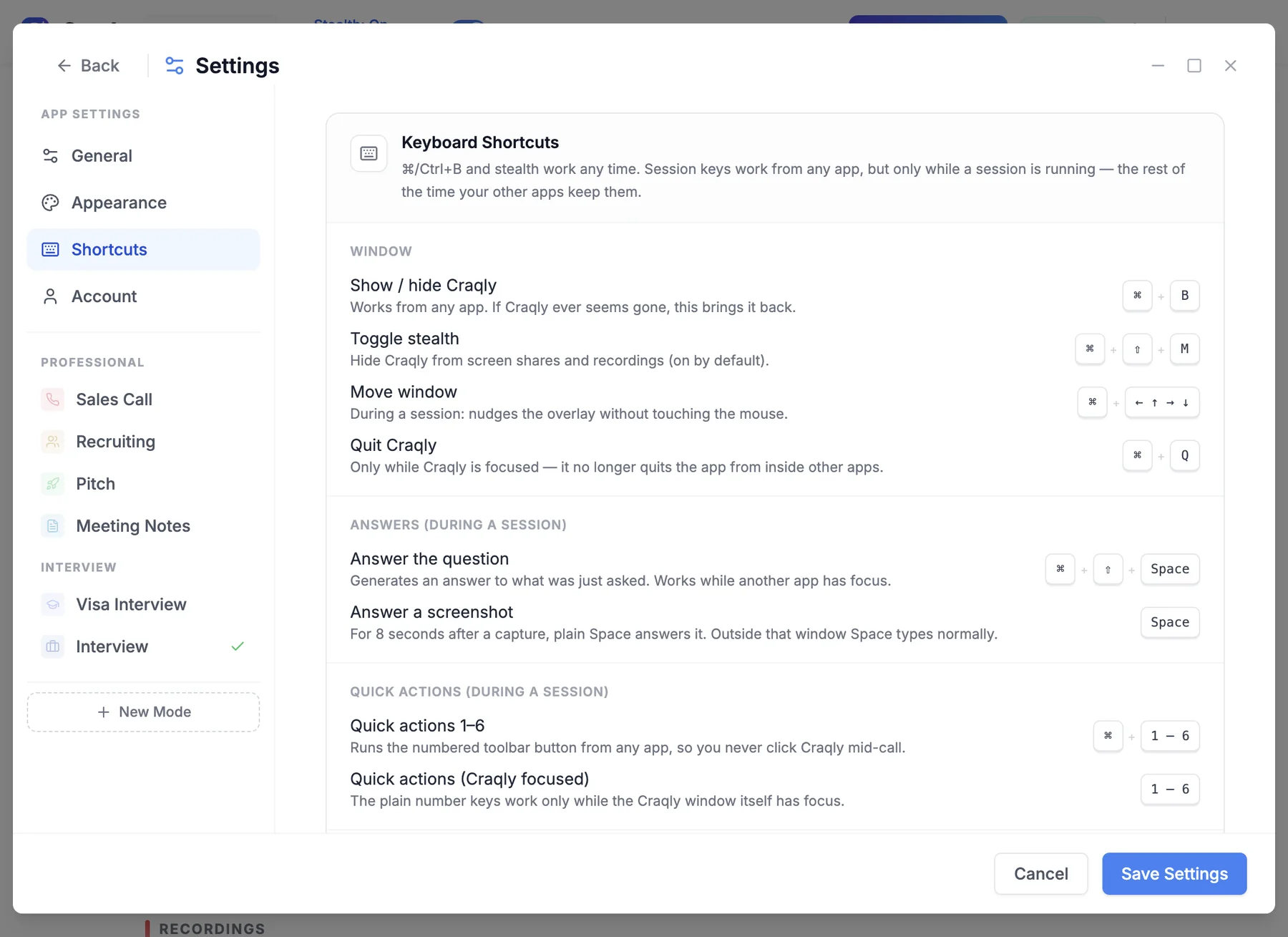
All videosKeyboard Shortcuts
Any time
- Show or hide Craqly, from any appCmd/Ctrl+B
- Turn stealth on or off (hidden from screen shares; on by default)Cmd/Ctrl+Shift+M
- Open the full shortcut list (while Craqly is focused)Cmd/Ctrl+/
During a session, from any app
- Answer the question (Ctrl+Space on Windows)Cmd+Shift+Space
- Run quick actions 1–6 without clicking Craqly, so your meeting keeps focusCmd/Ctrl+1 … 6
- Take a screenshot; then plain Space answers it (for 8 seconds)Cmd/Ctrl+H
- Move the Craqly windowCmd/Ctrl+Arrow keys
Only when Craqly is focused
- The same quick actions. Prefer the Cmd/Ctrl form in a live call1 … 6
- Scroll the answerArrow Up / Down
Cmd on Mac, Ctrl on Windows. See every shortcut in Settings → Shortcuts.
Tips & Best Practices
Practice Before Going Live
Use Practice / Simulation mode to rehearse with the app before your actual interview. This helps you get comfortable with the interface, response timing, and how to naturally incorporate AI suggestions.
Upload Your Resume
Always upload your resume when using Behavioral or Practice mode. The AI personalizes every STAR answer using your real experience, making responses far more convincing and authentic.
Audio Quality Matters
In Live mode, audio quality directly affects transcription accuracy. Use a quiet environment, ensure your meeting volume is at a comfortable level, and avoid background noise for the best results.
Stay Natural
Use AI suggestions as talking points, not scripts. Paraphrase responses in your own words, maintain eye contact with the camera, and let your personality come through. Interviewers value authenticity.
Use Quick Actions Strategically
In Coding mode, start with Hints if you want to solve it yourself, then escalate to Approach or full solutions as needed. In Behavioral mode, use Score after answering to identify weaknesses before the interviewer does.
Ready to Ace Your Next Interview?
Download the Craqly Desktop App and start practicing with the Interview Copilot. 20 free credits a month included, no credit card required.